A free guide for musicians & labels on how to make sure your promo files are tagged correctly before you send them out.
If you are a musician or label who does not tag your files, you are shooting yourself in the foot, calf, knee, thigh, hip, stomach, lungs, and heart. The good news is it is incredibly easy to tag your files properly and only takes a few minutes and you get to live to fight another day.
If you are a musician on a label and the label is “handling” this for you, you still need to ask about this. If you are a musician paying for your own PR, you absolutely need to ask about this. Have them send you their planned promo email before they send it out to the media. Double check that the files are correctly tagged. Send this post to your label if they are not.
If you are a person who gets paid to do PR or related work and you are reading this, donate to my PAYPAL and VENMO. It’s “professional education” and probably tax deductible if you talk to your accountant. I’ll send you an invoice for an extra $250 on top of your donation.
If you are a person who gets paid to do PR or related work and you are not tagging your files, you are ripping off the artists you claim to represent. And by ripping off I mean you are straight up stealing their money and doing them a massive disservice. You cannot count on platforms like Disco, PromoJukebox, Bandcamp, etc to do this properly. I’ve downloaded just as many untagged or incompletely tagged files from those platforms as I have from dropbox or wetransfer links.
The Question and Answer portion of the Evening
What does it mean to tag your files?
Short answer: adding metadata to files so that when they are opened in a music player or radio station management software, the correct tags such as artist, album title, and track names appear as YOU intend them to.
What does it look like when my files are tagged correctly?
Files that are correctly tagged with display the correct information for artist, album title, song title, track number, year, etc.
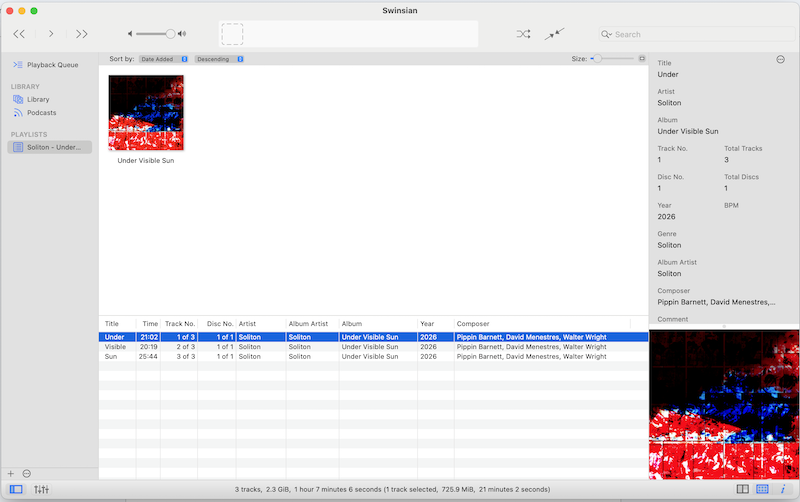
What does it look like when my files are untagged?
If your files are untagged, they could show up like anything when opened in a music player. Instead of having your song titles and artist names, they may show up like “Track01” with no other information.
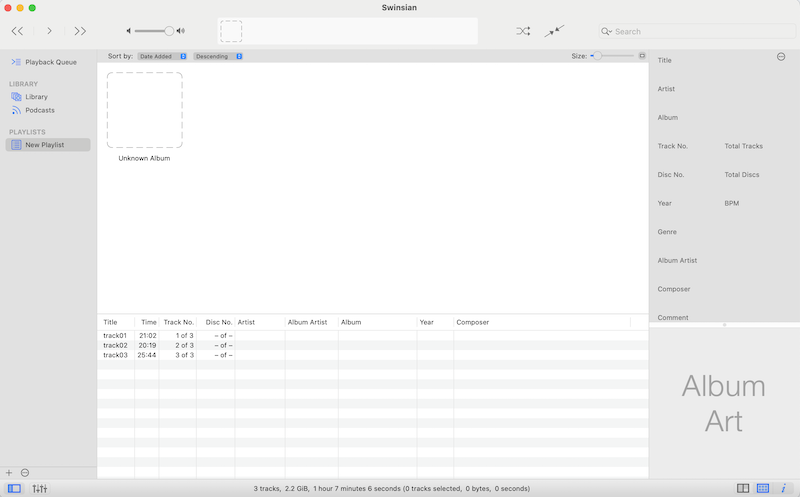
Why should I tag my files?
Most writers and radio people I know will immediately delete files that are untagged. Why? Because when you get a bunch of promos every day, you can’t really manage having a bunch of tracks that are all called “Track01” with no other information.
I’ve also started tagging my own files that I send to friends, not just ones for “release.” This helps make sure we’re all listening to the correct thing and not the wrong version of final-final-no-really-v3.wav.
How long does this take?
A few minutes. It’s easy. I promise. It takes longer to read this post than it does to tag an album’s worth of files.
Why am I doing this? Not me writing this but you tagging your files.
You are taking a few minutes out of your life to make other people’s lives much easier in the hope that they are more likely to listen to your music and maybe write about it or play it on the air. Tagging your files is not a guarantee of anything except those files being much less likely to end up in someone’s trash.
Why won’t someone else do this for me?
“Life coaching” starts at $350/hr. Get in touch.
The Information
For the purposes of this article, I am going to be talking about the tools that I use to do this. There are many free/donation based applications for all operating systems that essentially work the same as the examples I am about to give. You can also do this through command line tools if you are that kind of person, but that is beyond the scope of whatever this document is.
For tagging files, I use xACT developed by Scott Brown. I’ve been using this for close to 20 years at this point and it has been nearly perfect for me in that time.
Remember to support independent software developers who build the tools you use, just like how you buy something from the merch table when you have extra cash and you’re seeing a favorite band. You do do that right?
For playing files, I use Swinsian so those are the screenshots you’ll see above, but again the principles are the same regardless of what music player, radio station management software, or whatever that people are using. Some music players including Swinsian do write great metadata tags that are readable by other programs, however many common music players do not. iTunes never tagged files correctly which is why I learned to do this however many years ago.
Let’s begin.
1. Find your files. Open xACT.
2. Switch to the “tags” tab. Drop your files into the section on the left.
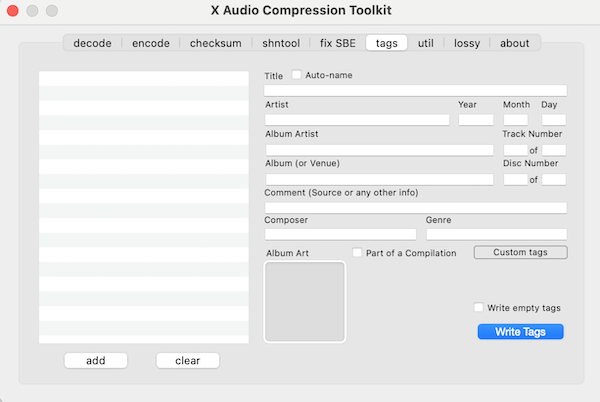
3. Select all the tracks you want to edit at once. For things like album artist and album title, which don’t change from track to track, it is easiest to do these all at the same time. When you’ve entered your information, click “write tags” in the bottom right of the xACT window. This information should write to all the tracks that were selected.
4. Add other information individually for each track such as track title, track number (formatted like 1 of 10). Click “write tags” after you’ve finished entering information for each track. Do this one by one for all of your tracks.
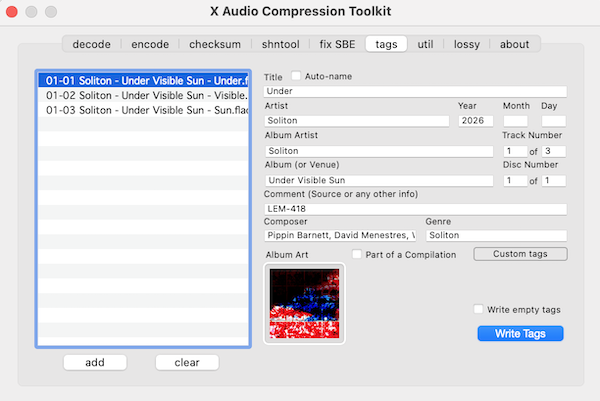
5. Find the folder with your files. At this point, they should be tagged properly, but you will want to check them before sending them out. You do this by opening the files in the music player of your choice. If you did it correctly, you should see all the information you added in xACT (see first screenshot above)
You can choose to add a lot of information in xACT, but at a bare minimum each track should include:
– track name
– track number (1 of 10)
– disc number (1 of 2)
– artist name (album artist too, which may or may not be the same)
– album name
– album artwork
You should also do this when you’re uploading files to Bandcamp and similar sites as it gives you more control over the information your fans get when they download your music. Bandcamp only includes some information in their automatically generated tags.
The last bits
Changing the metadata for your files does not change the file name itself.
This is something you need to do, preferably before you start the process above. You should never send out something called track01-finalv3-remix-masterv2.wav or track01.mp3.
Your file name should be something like [track number] – [artist name] – [album name] – [track name].wav or whatever. Something really obvious when someone downloads your files.
Even if you get your metadata right, if your files are all called “track01.wav” they are almost guaranteed to be headed to the trash.
When you upload any files to Bandcamp or Disco or whatever, you should always be uploading the highest quality files you have, after you’ve tagged them correctly.
If you tag the full lossless version of your files first and then convert to whatever other formats you might need, your tags should stay embedded in the files. Do this with the master version at the highest quality you have and then convert as needed to other formats. One of the things I like about xACT is the built in file conversion. I am also a big fan of XLD, another great program that also goes back 20 years.
And just to say this again: always remember to drag your tagged files into the player of your choice and make sure the information is correct before you upload or send out your files. Checking your work is important. One of my most favorite albums of the year has the title misspelled on their Bandcamp page and I can’t even tell you what that does to my soul for that artist.